Sorting Prescriptions
You can sort prescriptions by different attributes to organize your Workbench view. For example, you may want to organize prescriptions by their Wait Status, priority indicators, or when the refill is due for AutoFill prescriptions. When you use the sort function, prescriptions can be ordered in ascending or descending order.
If you set a sort from the Pending or Completed tabs, the sort applies to both tabs. If you set a sort from the To Do or In Process tabs, the sort only applies to that tab.
In the following example, a sort has been used to order prescriptions in the Completed tab by Wait Status then by Date, in ascending order. As a result, prescriptions with a shorter wait time are placed at the top of the Workbench. For prescriptions with the same wait time, those with earlier entered dates are positioned before later entered dates. The sort can be used in combination with the Calendar to organize prescriptions from a certain day, week, or month.
Custom sorts are only applicable to your current login session. If you log out and back in, the sort will be reset.
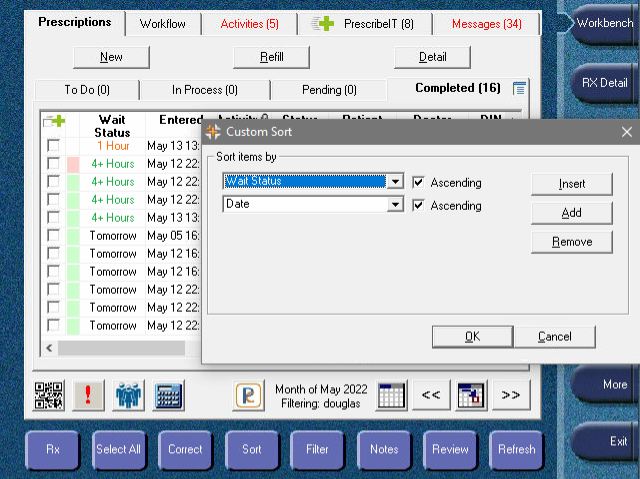
To sort prescriptions on your Workbench:
-
Select the tab on the Prescriptions Workbench that you want to sort.
-
Select the Sort button, located at the bottom of the window.
-
In the first row, select how you want the prescriptions to be sorted. Select the Ascending checkbox if you want the order to be ascending. An ascending order can be numerical, alphabetical, by date/time, or the presence of something (absence at the top).
-
Select the second row.
-
If you want a multi-level sort, select the sort option and the ascending checkbox, if applicable.
-
If you want a single-level sort, select Remove.
-
-
Repeat step 4 until all remaining rows have been removed or set. If additional rows are required, select Insert to add a row above or Add to add a row below the current selection.
-
Select OK.
-
If you want to apply the sort for a certain day, week, or month, select the Calendar button and choose the view.
To remove a sort on your Workbench:
-
Select the Sort button, located at the bottom of the window.
-
Select the row you want to remove.
-
Select Remove.
-
Repeat steps 2 - 3 until all desired rows have been removed.
You must have at least one sort option for the Workbench.
Sort Options:
| Sort Option | Description | Availability on the Workbench |
|---|---|---|
| Activity | Ordered according to New, ReAuth, and Refill status. | To Do, Pending, Completed |
| Auth | Ordered according to whether the prescriptions were authorized (AUT) or not authorized (NOT). For more information, see Refilling an Unauthorized Prescription. | To Do, Pending, Completed |
| Billing | Ordered according to the Bill Codes entered in Rx Detail. | To Do, In Process, Pending, Completed |
| Bkgrd | Ordered according to whether the prescriptions were background processed. | To Do, Pending, Completed |
| Call Complete Date | Ordered according to the dates and times the outbound calls were made. This is only applicable to stores with outbound calling activated. | To Do, Pending, Completed |
| Date | Ordered by the dates the prescriptions were entered. | To Do, Pending, Completed |
| DIN | Ordered by the DIN of the drugs. | To Do, In Process, Pending, Completed |
| Dlg | Ordered according to whether the prescriptions had Dialogue entered. For digital workflow stores, this flag does not correspond to the Dialogue completed in Patient Centre. For more information, see Documenting Dialogue for a New Prescription. | To Do, Pending, Completed |
| Doctor | Ordered by the last names and then the first names of the doctors in the prescriptions. | To Do, Pending, Completed |
| Entered | Ordered by the dates the prescriptions were entered. | To Do, In Process, Pending, Completed |
| Form | Ordered by the dosage forms of the drugs. | To Do, In Process, Pending, Completed |
| Last Fill | Ordered by the dates of the last fills in the prescription chains. | To Do, In Process, Pending, Completed |
| Mfr | Ordered by the 3-letter manufacturer codes for the drugs. | To Do, In Process, Pending, Completed |
| P/D | Ordered according to whether the prescriptions were designated as pick up or delivery by the patient on the Diem app or IVR. | To Do, Pending, Completed |
| Patient | Ordered by the last names and then the first names of the patients. | To Do, In Process, Pending, Completed |
| PreAuth | Ordered according to whether the prescriptions were pre-authorized. For more information, see Pre-Authorizing a Prescription | To Do, Pending, Completed |
| Priority | Ordered according to priority indicators. Ascending order is as follows: IVR priority (T!) > IVR (T) > Time My Meds Short Fill (S!) > Time My Meds Sync (S) > AutoFill (A) > Web Refill (W). | To Do, Pending, Completed |
| Refill Due | Ordered by refill due dates for AutoFill prescriptions. This is calculated based on the days supply and the date the prescription is picked up for POS integrated stores. For non-POS integrated stores, the refill due dates are calculated from the day after the last day in the days supply. | To Do, Pending, Completed |
| Reqdetails | Ordered according to whether requests were printed or faxed and then the types of requests (i.e. authorization request or form). | To Do, Pending, Completed |
| Rx Number | Ordered by the prescription numbers. | To Do, In Process, Pending, Completed |
| Status | Ordered by prescription statuses (i.e. Incomplete, Queued, Complete, Cancelled, Hold, Amend, Amend Next). | To Do, In Process, Pending, Completed |
| Time | Ordered by the pick up or delivery times designated by the patients on the Diem app or IVR. | To Do, Pending, Completed |
| Trade Name | Ordered by the trade names of the drugs. | To Do, In Process, Pending, Completed |
| User | Ordered by the user initials who were associated with the prescriptions in Rx Detail. | To Do, In Process, Pending, Completed |
| Wait Status | Ordered by the prescription wait statuses. To set a prescription wait status, the Workflow Preference must be enabled. A prescription status can be manually set by using the ! button on the Workbench. For more information, see Workflow Preferences and Prioritizing Prescriptions Using Wait Statuses. | To Do, In Process, Pending, Completed |
| Workflow | Ordered by the prescription Workflow statuses. For more information, see Workflow Statuses - Prescriptions Workbench. | To Do, In Process, Pending, Completed |
| Workstation | Ordered by the Workstation names where the prescriptions were actioned. | To Do, In Process, Pending, Completed |