Manually Sending an Inventory Order to the PharmaClik Order Website
Your pharmacy will have the ability to manually send an order to the PharmaClik Order website, however it is only recommended as a last resort. PTS strongly recommends that you attempt to create the order again at a later time. This is to ensure that no duplicate orders occur as PharmaClik Order can no longer delete the previous order file.
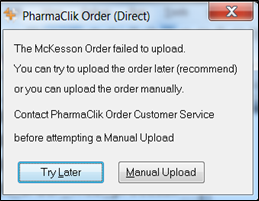
The only time you will be able to create a manual order through PharmaClik Rx to upload to the PharmaClik Order website is if the Web Service is no longer communicating with the PharmaClik Order website. If this occurs, a prompt similar to the one displayed will appear.
To Manually Upload an Order:
- Contact PharmaClik Order Customer Service to validate that the Web Service is down and that a Manual Upload must be completed.
- Select the Manual Upload button. The window returns to the Purchase Order screen.
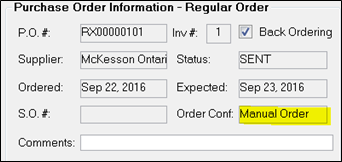
- Log on to the PharmaClik Order website and select the Upload Order option.
- Once the order has been uploaded to the PharmaClik Order website, open the following folder path: C:\Program Files\Propharm\Nexxsys\Inventory\Medis\Manual
- To avoid any duplicate orders you MUST DELETE the order.data file.
Note: Ensure you delete the file as indicated in Step 5! Not doing so will result in your pharmacy having duplicate orders that may potentially contain non-returnable items!