Receiving an Inventory Order from the PharmaClik Order Website
Warning This process is decommissioned as of April 1, 2022. Refer to Downloading and Reconciling McKesson Invoices Using Web Services for further instructions.
Purchase orders with an Applied Date can be reconciled from the Orders tab in the Supplier folder. It is not necessary to the open the purchase order window. Only one purchase order can be reconciled at a time.
- Step One: Reconciling the Order in PharmaClik
- Double-click the PharmaClik icon on the desktop.
- Log into PharmaClik.
- Hover to Finance and select the Invoices Download function.
-
Ensure that invoice.dat is selected from the dropdown.
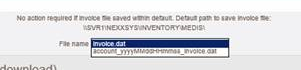
- Select the Download button on the first New invoice listed.
- Select the Save As button at the bottom of the screen. Ensure it is saving to the Medis folder. The correct file path is: \\SVR1\nexxsys\inventory\medis.
- Select the Save button.
Note: If the file is not in the New Invoice section, check to see if it is in the Old Invoice section by matching the Shipped Date with the paper invoice.
-
Step Two: Applying the Order
- Select the More button.
- Select the Supplier button. If the 'Supplier Search' window opens, enter McKesson in the Supplier Name column and select the Search button. Select the appropriate supplier from the list.
- Select the Orders tab.
- Select the Revert button.
- Select the Apply button. Once applied, an applied date will appear in the Applied Date column.
- Highlight the first purchase order with an applied date.
- Select the Actions button.
- Select the Reconcile button.
- Continue highlighting and reconciling all new purchase orders using Steps f - h.
- If an Auto-reconcile Exceptions report prints, review it to ensure no manual adjustments need to be made.