Saving Default Settings for Reports
In PharmaClik Rx you can save frequently used settings for Extended criteria on all reports. To save default settings for reports:
- Open the desired report. See Selecting a Report.
- From the Criteria tab and under the Extended section, select the options you want this report to retain.
- Press the Set Defaults button. Result: a check mark will appear beside Set Defaults to confirm that default settings have been saved.
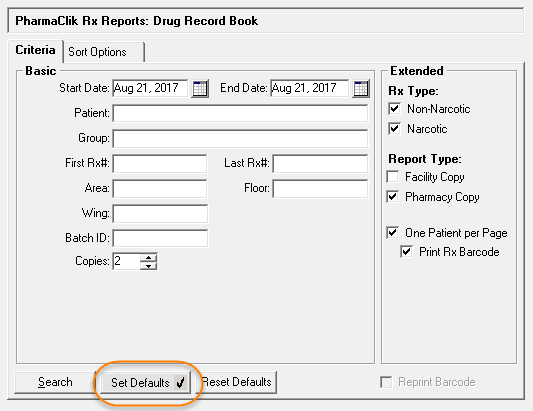
Note: Reports will not save default settings defined for Basic Criteria or Sort Options except for the Copies field—if you have reports that contain this field and you have customized the value, the default settings will be retained.
Resetting Default Settings for Reports
To remove default settings for reports, select the Reset Defaults button from the report's Criteria tab. The report will reset and retain the default PharmaClik Rx settings.