Checking the Accounting Transaction Management
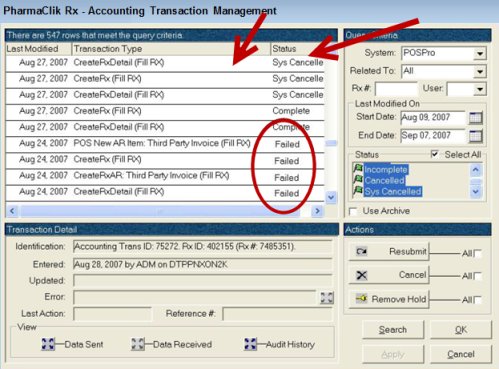
Accounting Transaction Management (ATM) handles all communication between PharmaClik Rx and Propel POS. To ensure all transactions are successfully transmitted to POS, staff should regularly check ATM to ensure all transactions are status Complete or Cancelled. The transactions occurring between PharmaClik Rx and Propel POS are a concept similar to prescription claims to third parties – you must resubmit any unsuccessful claims until they are accepted; in this case, you must ensure all transactions submitted to Propel POS are Complete or Cancelled.
- Press More > Housekeeping > Accounting.
Note: The Housekeeping and Accounting buttons will be disabled if the user currently logged onto PharmaClik Rx is not authorized to access Housekeeping or PharmacySuite.
- ATM opens. All transactions are listed on the upper left side of the window. The Status column indicates if transactions are Failed or Incomplete.
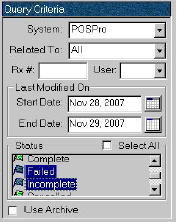
- To find Failed and Incomplete transactions, enter the following under the Query Criteria (the Query Criteria should appear the same as this picture):
- System = POSPro
- Related To = All
- Rx# and User must both be blank.
- Enter a Start Date and End Date. The Start Date should be the last date ATM was checked; the End Date should be today’s date.
- In the Status box, scroll down until you see Failed and Incomplete. Highlight Failed. Hold down the CTRL key on the keyboard and highlight Incomplete. Both statuses should now be highlighted.
- Press the Search button located on the lower right side of the window. ATM refreshes and only Failed and Incomplete transactions are listed.
- Select the All checkbox located to the right of the Resubmit button (all transactions listed in the window are selected).

- Select the Resubmit button. All Failed and Incomplete transactions are resubmitted to POS.
- Press the Search button to refresh the list of transactions. Some of the previously Failed transactions may become Incomplete. If this occurs, refresh by pressing the Search button again.
-
If there are still Incomplete transactions in the list after refreshing, press the Cancel button to close ATM. Repeat steps 1- 7. Contact the PTS Customer Care team if the Incomplete transactions are still listed.